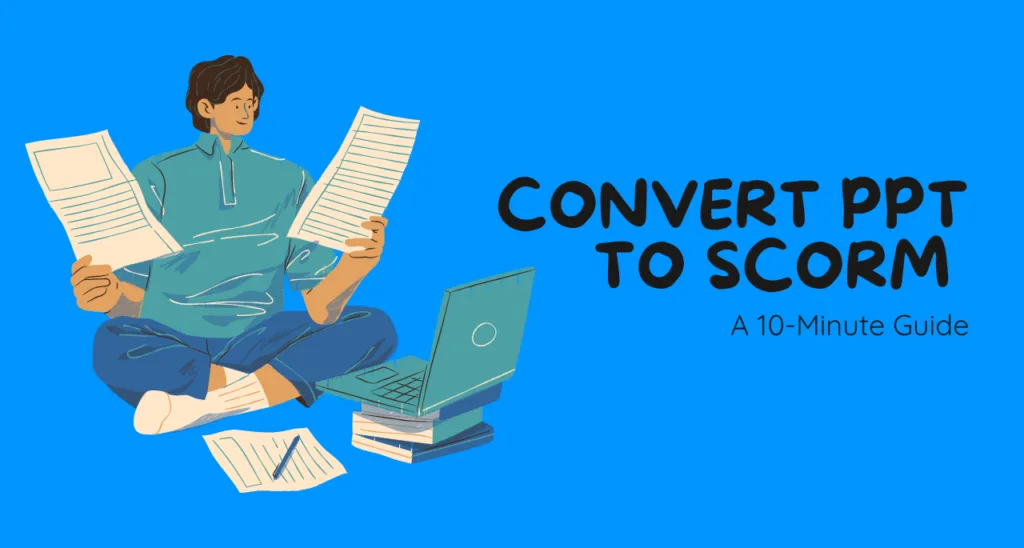






No design program, no developer, no training budget is required for converting the presentation into an SCORM pack. All that is needed is 10 minutes of your time and one free browser tab.
The following is a step-by-step guide on how to transform a PPT presentation into an SCORM pack using a free online converter. This article will provide you with all necessary information regarding conversion.
The whole procedure is split into small and quick steps.
Before You Start: A 2-Minute Prep Checklist
This little trick before conversion will save you from doing everything again.
You need to have the file in .PPT or .PPTX format. The majority of converters support both formats, but PPTX keeps formatting after conversion better than PPT.
Review the file size. Free converters will often limit your file size to around 90MB. If yours is larger, you should consider reducing the file size by compressing images first.
Figure out which SCORM version your learning management system requires. It’s always better to double-check now rather than risk an error when uploading later.
Conduct a final content check. After the conversion, it’s possible to re-convert the presentation if there’s a typo, but this step will take much less time.
The actual conversion is almost instantaneous. The only step which is worth spending additional time on is the checklist above because it eliminates one or two errors which actually waste time later.
Step 1: Upload Your PPT File
Time: approx. 1 min
Visit the free online converter such as PPT to SCORM converter. You will not need an account to use it.
- Click on the upload field or drag and drop the PPT or PPTX file to the browser window
- Wait for a couple of seconds while the file loads. Bigger files with more images may take a little longer to load.
- Usually, you’ll see a preview or a confirmation that the file has been successfully uploaded.
You can perform this step with any browser such as Chrome, Edge, or Safari. So no special browser or operating system is needed.
This is the easiest step of the entire process, and at the same time the one that is expected to be more difficult. It really is just drag and drop and wait for a couple of seconds.
Step 2: Choose Your SCORM Version
Time: 1 minute
Following the upload of the file, there will be an option for you to select a SCORM version. The two options here are SCORM 1.2 and SCORM 2004 (3rd/4th editions).
- Go for SCORM 1.2 if your LMS is an older version, or when you’re uncertain about the type supported by your LMS. SCORM 1.2 is the most accepted version.
- Go for SCORM 2004 if your LMS is a modern one or if it is hosted on a cloud, and you would like slightly more sequencing details and tracking information.
If your organization has different LMS systems, it means you will have to convert the file into both SCORM versions.
This is the only place you get to make a choice throughout this entire process. Make the correct choice at this point, and it’s all smooth sailing from then on.
Step 3: Convert and Download the Package
Time: around 1 minute
Now that you have selected your file and the version of SCORM, press convert.
This software converts your slides into a SCORM-compliant ZIP file with navigation buttons and tracking code automatically added in the process.
It usually takes only a few seconds, regardless of the length of the presentation.
Afterwards, you will find a download button that will allow you to download the SCORM package to your computer.
Note that by now your original PPT file is left as it was, and what you have downloaded is another package developed out of it.
Here is where the actual “conversion” happens, and it is the quickest one. Your 10 minutes are mainly spent on preparation and testing.
Step 4: Test the SCORM Package Before Uploading
Time: approximately 2 minutes
This is something that’s very easy to forget, but it’s always worth the additional two minutes.
- If your learning management system has a preview or sandbox environment, then upload the SCORM package there first.
- Otherwise, you can upload the package into a SCORM testing site like SCORM Cloud.
- Make sure that navigation is working properly, that the slides are displaying well, and that the package is being recognized as either “in progress” or “complete.”
While not skipping this step will normally not cause an issue, when it does happen, it’ll be far quicker to discover a version mismatch or upload issue in the test environment than before your actual learners.
Testing is not about finding out if there is a mistake with the content of your package, your slides are fine. Testing is about format matching problems with your SCORM package and the specific learning management system in question.
Step 5: Upload the Package to Your LMS
Time: 2 minutes
After you’ve finished testing and setting up your SCORM package, all that is left is uploading it onto your live LMS.
- Sign in to your LMS as a system administrator or as a course creator.
- There should be options such as “Add course,” “Import SCORM” or “Upload content,” etc.
- Upload the ZIP file in the way it is downloaded without unzipping it.
- Allocate the course to the appropriate learners, group or department and publish the course.
From now on, your LMS will automatically monitor completion, score and time taken as soon as your first learner starts taking the course.
This is when the fruits of all of your labor will come into effect; this is the point where everything becomes measurable.
Common Issues and Quick Fixes
Nevertheless, even in this case, there can appear some minor problems that should be solved. Below are the recommendations concerning the most common problems:
- LMS does not accept the SCORM package: This problem occurs because of the inconsistency between the versions of LMS and SCORM packages. Try to re-upload the package using the other version of SCORM (either 1.2 or 2004).
- The course begins to load, but there is no tracking of its completion: In this case, you have to examine your LMS configuration because some of them require additional “completion criteria.”
- Animations and transitions become simplified: Sometimes custom animations become simpler during conversion for rendering consistency across all web browsers. But standard transitions usually aren’t affected by this.
- The file is not being uploaded: Please make sure that you are uploading the correct file and the size of the file matches your converter limit.
The majority of issues relating to uploading the file arise due to either selecting an incorrect SCORM version or uploading an incorrect file format.
Ready to convert your first deck?
You’ve seen every step. Now it takes less time to do it than it did to read about it.
- Convert PPT to SCORM free
- Convert PDF to SCORM
- Convert DOC to SCORM
- Convert MP4 to SCORM
- Explore SimpliTrain’s full AI course authoring tool
FAQ
1. Is there anything special about the technical knowledge required to convert PPT into SCORM?
No. This will be done by a simple online converter that doesn’t require any technical knowledge.
2. How much time does the conversion itself actually take?
The conversion process itself should take no more than several seconds, and the whole process including preparation and testing shouldn’t take more than 10 minutes.
3. Will my content change after conversion?
No, the converter doesn’t redesign anything in your presentation. It just puts navigation and tracking code around your slides.
4. What is the difference between SCORM 1.2 and SCORM 2004?
The only difference between the two is that SCORM 2004 offers detailed statistical information and is compatible with all types of LMS platforms.
5. Is it necessary for me to unzip the SCORM file before uploading it to my LMS?
No. The majority of LMS systems require SCORM packages in ZIP format. Uploading unzipped content usually results in the failure of the upload process.
6. Is it possible to convert the same PPT file twice for a new SCORM version if needed?
Yes. Since your original PPT file remains intact, you can do the conversion process multiple times for various SCORM versions and LMS platforms.
7. What is the size limit for converting PowerPoint slides into SCORM using SimpliTrain Converter for free?
The majority of the free tools, including SimpliTrain’s, allow for files up to 90 MB.